Navigating the Search Page
Finding what you're looking for in RedEye is fast and easy. You don't need to know where to go in the 'filing system' like a lot of other applications – all you need is a good idea of the keywords or numbers that will help you find what you're looking for.
What's in this Article:
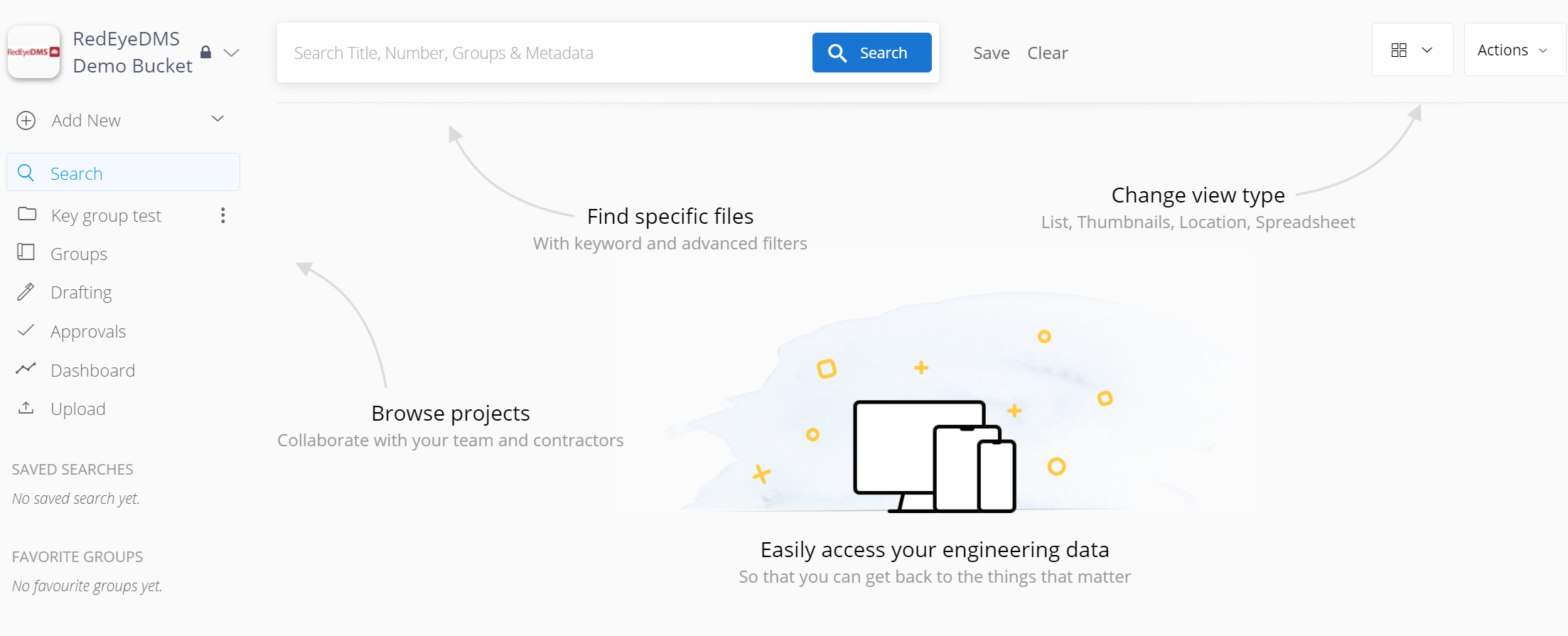
Click Search from the left navigation bar, and you'll be directed to the Search page.
Using the Search Engine
Using the Search function in RedEye is easy but can get very sophisticated with the various tools available. We have an extensive article HERE to help you learn and master the Search Engine.
Customising your Search page
Choose how to view the drawings in a way that best suits your task by clicking on either List, Map, Grid or Table on the top right corner of the screen. You can also set your Default View as any of the above.
Default Search View
In the search view drop-down menu, on the bottom, click on the Default View button.
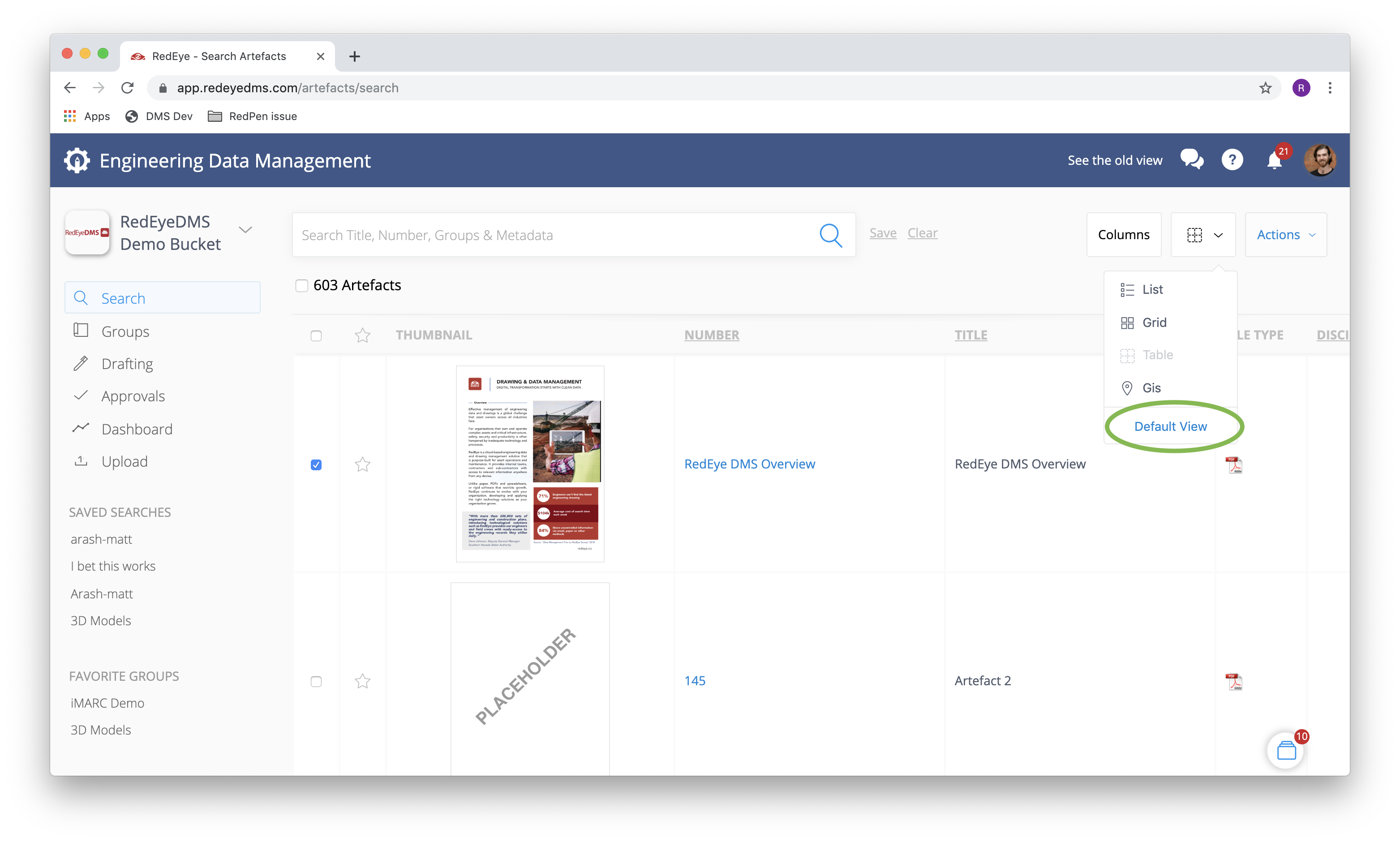
In the pop-up window, you can set between list, grid and table view.
Once you’ve selected your preferred default view, click Update to save your setting.
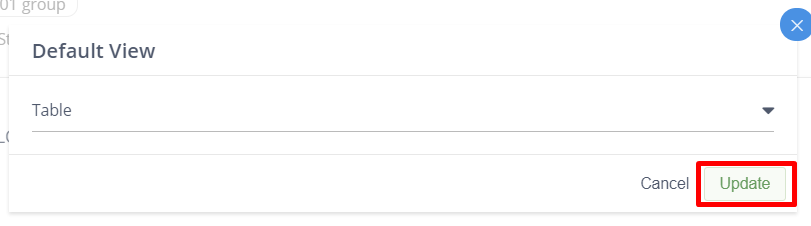
Table View Column Order
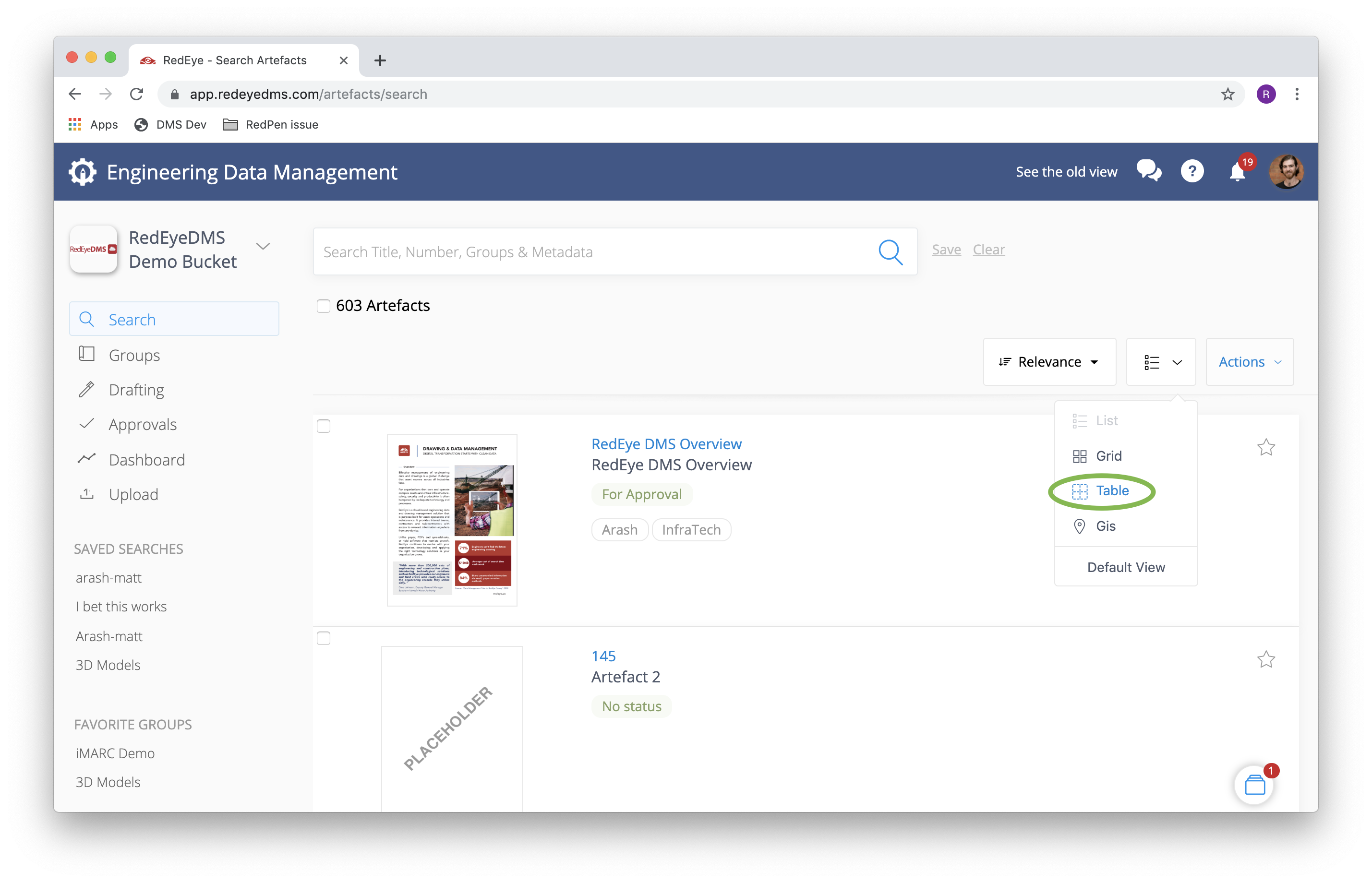
You can switch your search view to Table View by clicking the view switch button in the top right-hand corner of the search page and then selecting Table.
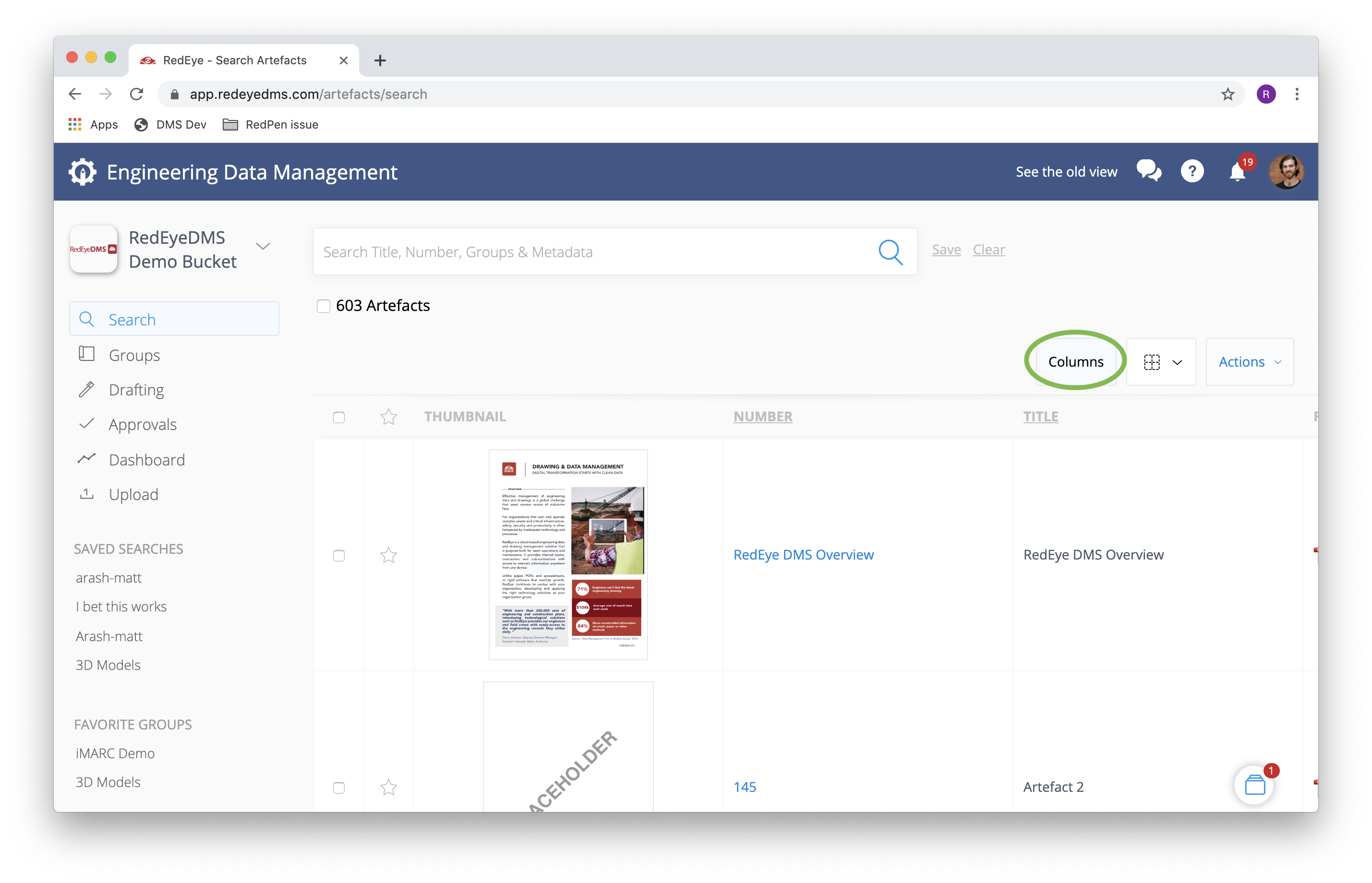
Once you're using the Table View, you can adjust the available metadata using the Columns button.
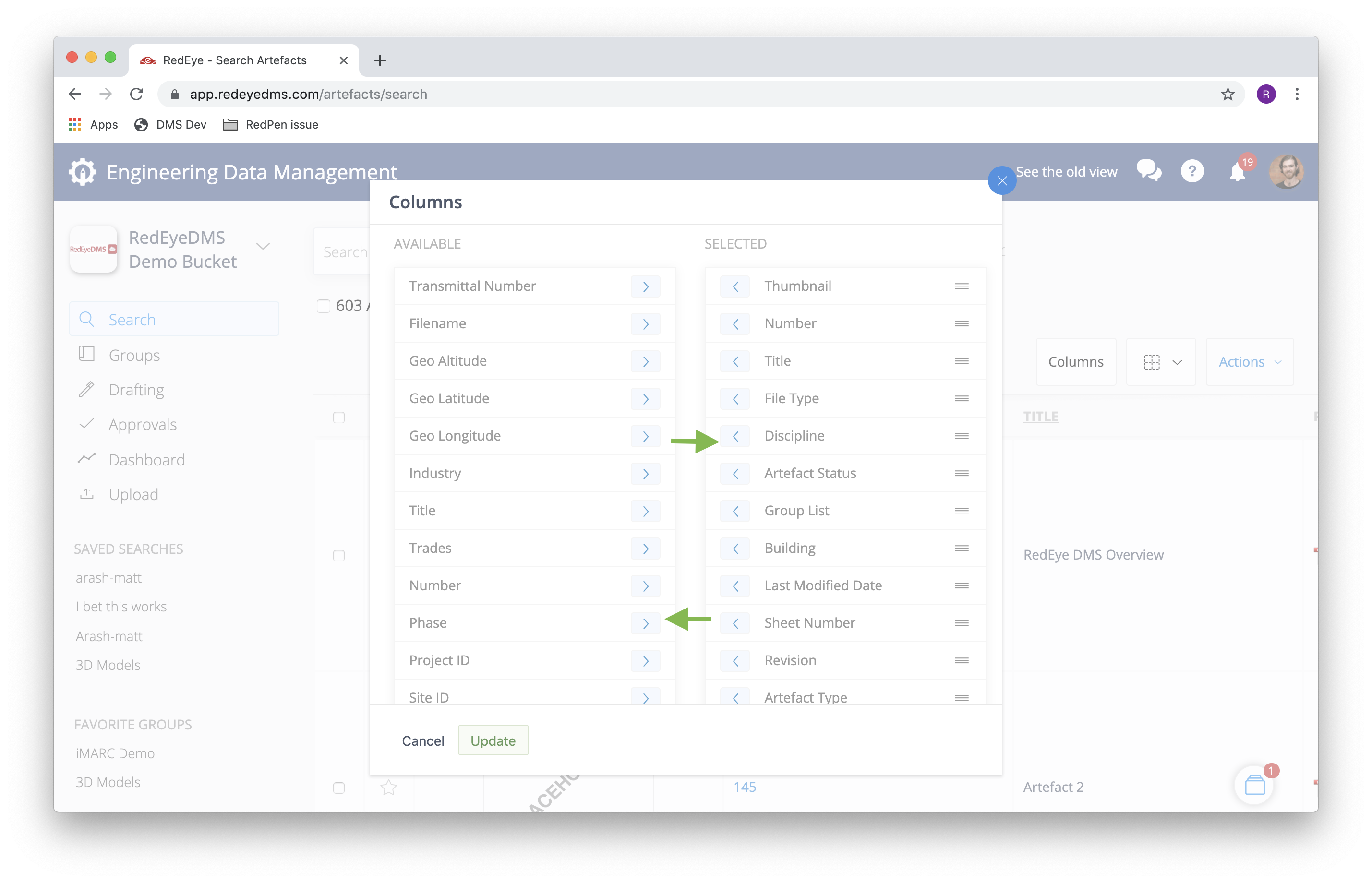
In the pop up window, you can move metadata fields from the list of AVAILABLE fields to the SELECTED metadata fields to make them display in the Table view and vice versa. You can click and drag the fields around and/or move fields from one list to the other using the < > buttons. You can also reorder your SELECTED fields using the ≡ button.
Sort Search Order
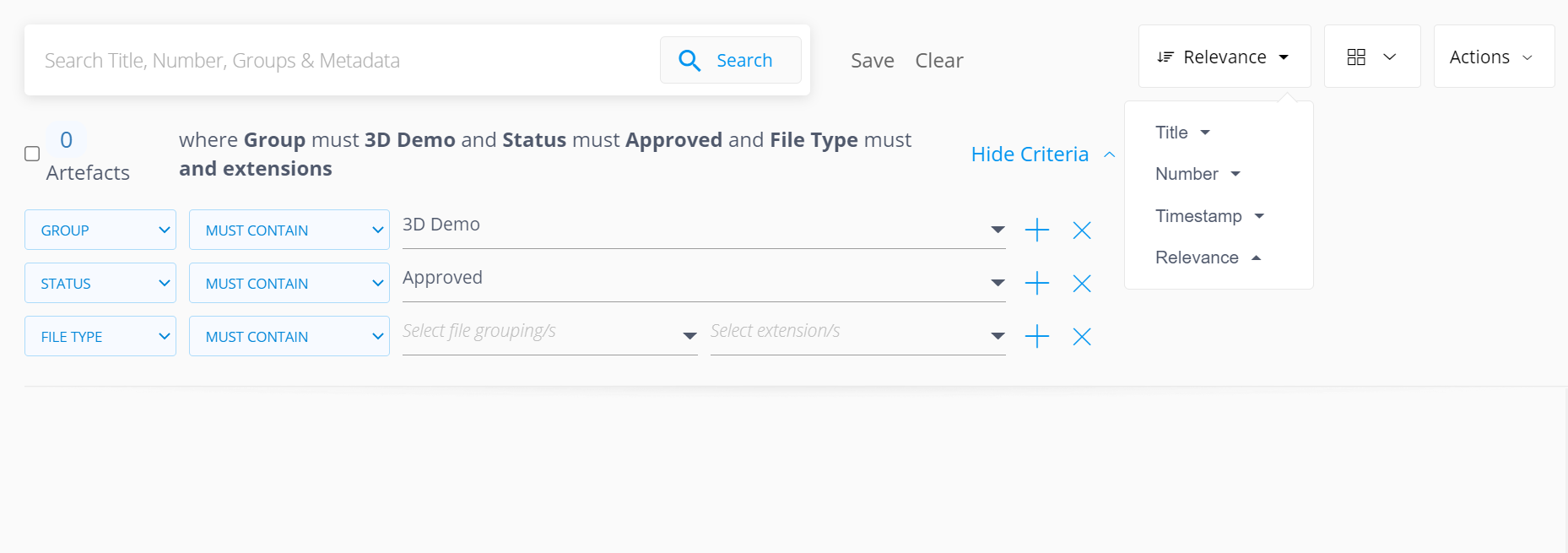
Choose how results are ordered by selecting Relevance, Title, Number or Timestamp in the top right-hand corner of the page.
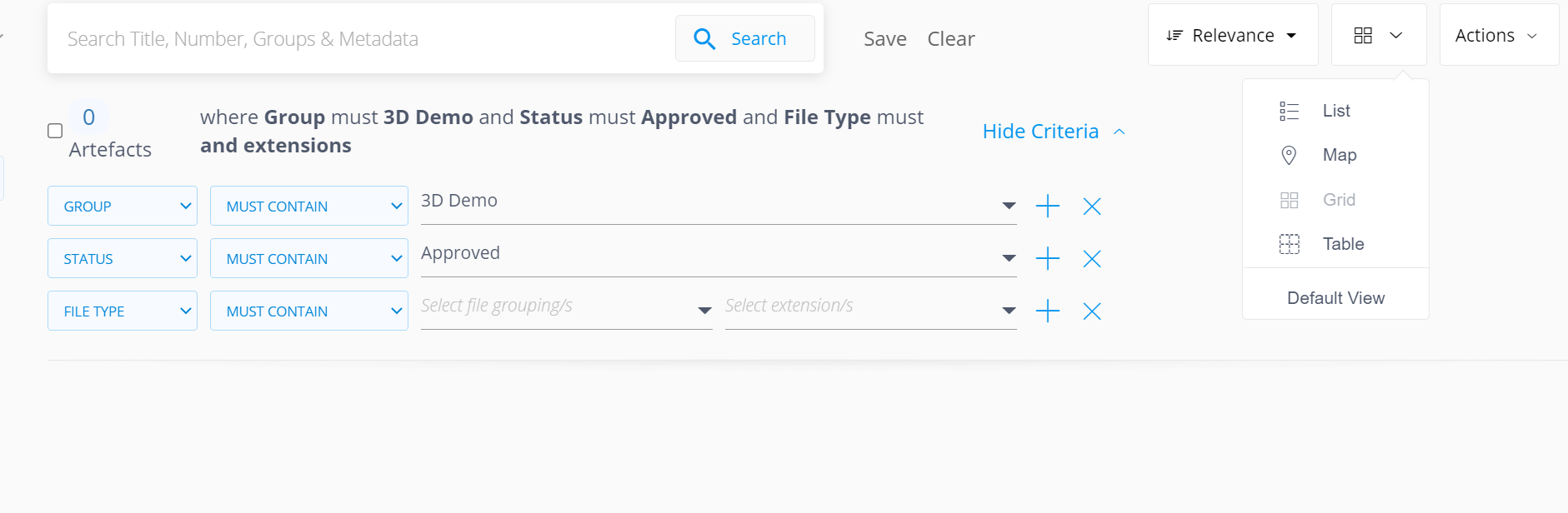
Note that in Table View, most Column Headers are sortable. Just need to click on them to sort your search results
Search by Location
RedEye DMS supports map searches for artefacts that have embedded GIS data. To search for these artefacts on a map interface, you must navigate to the Search Page's map view.
The map interface can be selected from the 'View' menu located at the top right of the search page.
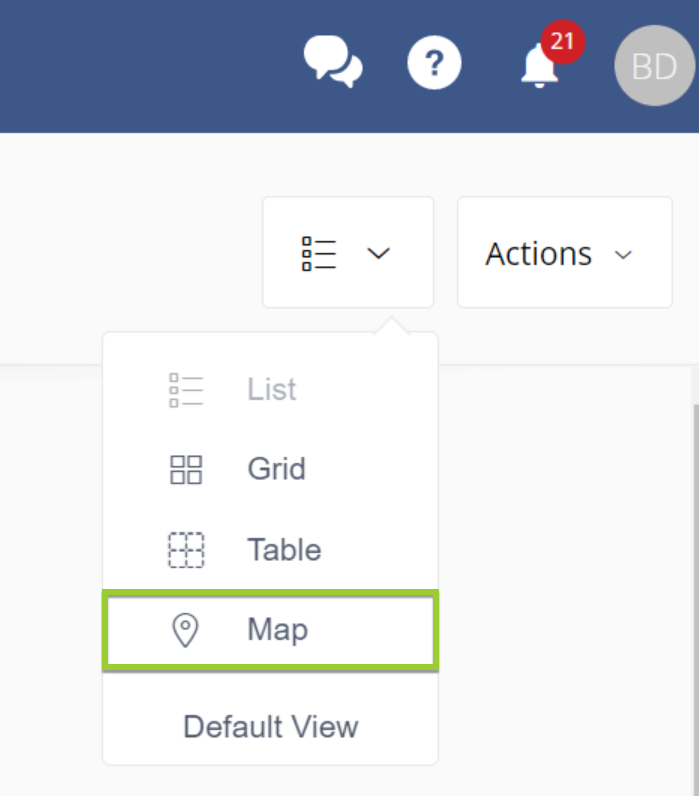
This will take you to world map. The map will show all artefacts with GIS data in the correct location.
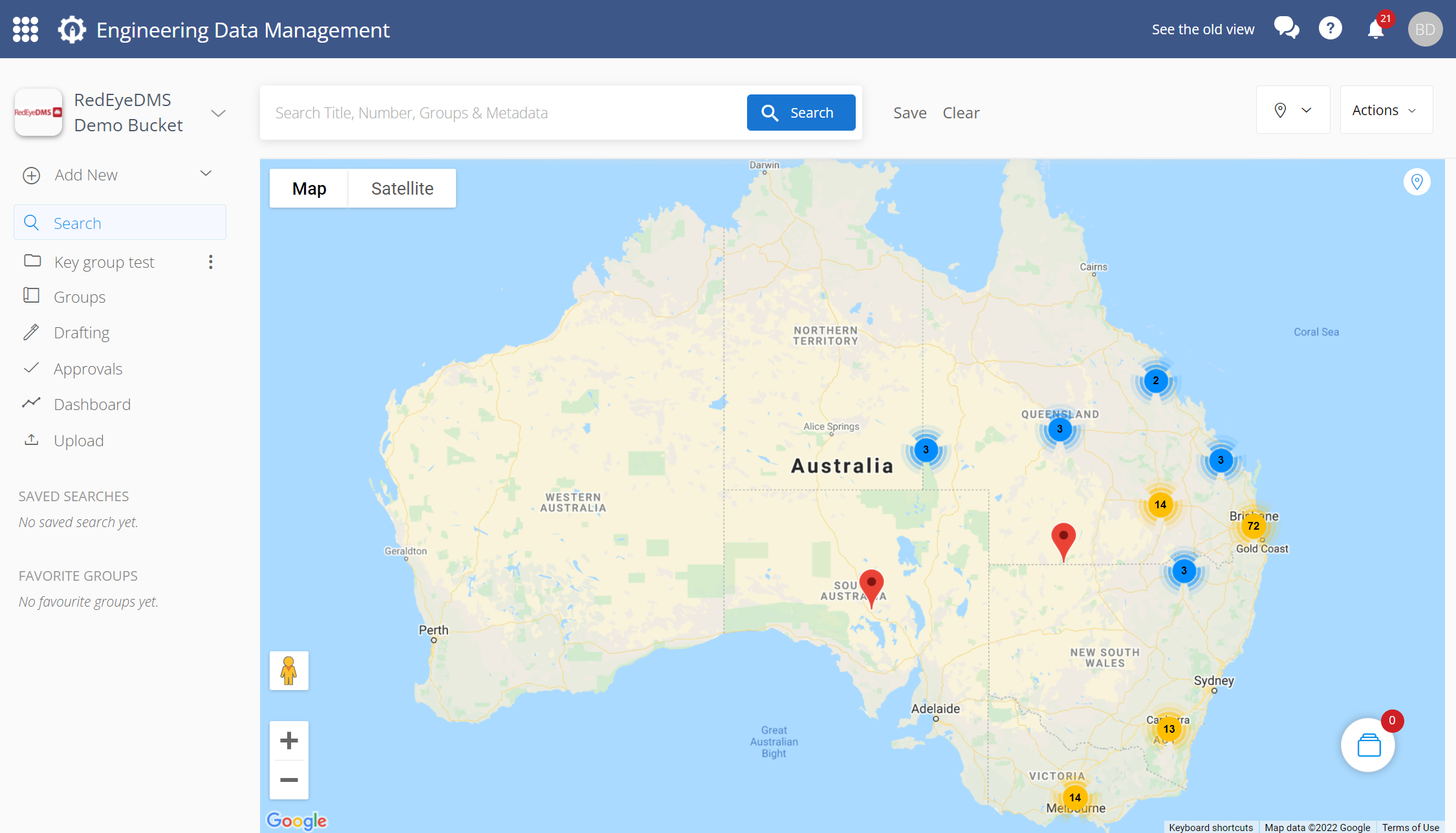
Default, Map view will display all pinned artefact on the map without any searches done. Once you have executed a Search, Map will only show the displayed artefact in Search Result in the map. The further you scroll down in the search result, they more artefacts will show up in the map.
Pin Artefacts To The Map
To pin artefacts to the map, first add the artefacts you want to pin to your Collection.Then click Search in the navigation menu and choose Map view in the top-right corner of the screen.
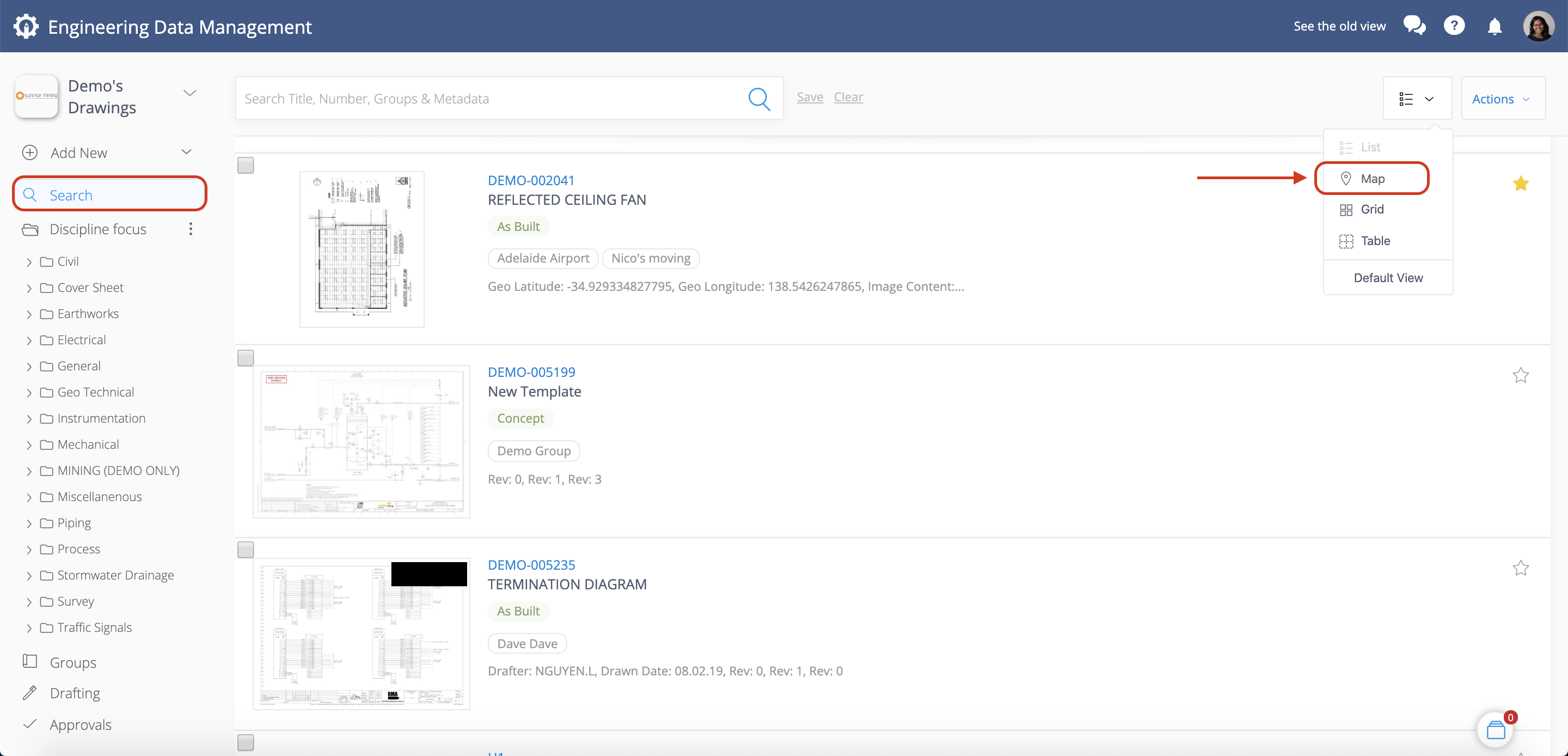
Click on the map in the area where you want to pin the artefact to, and then click Save Location.
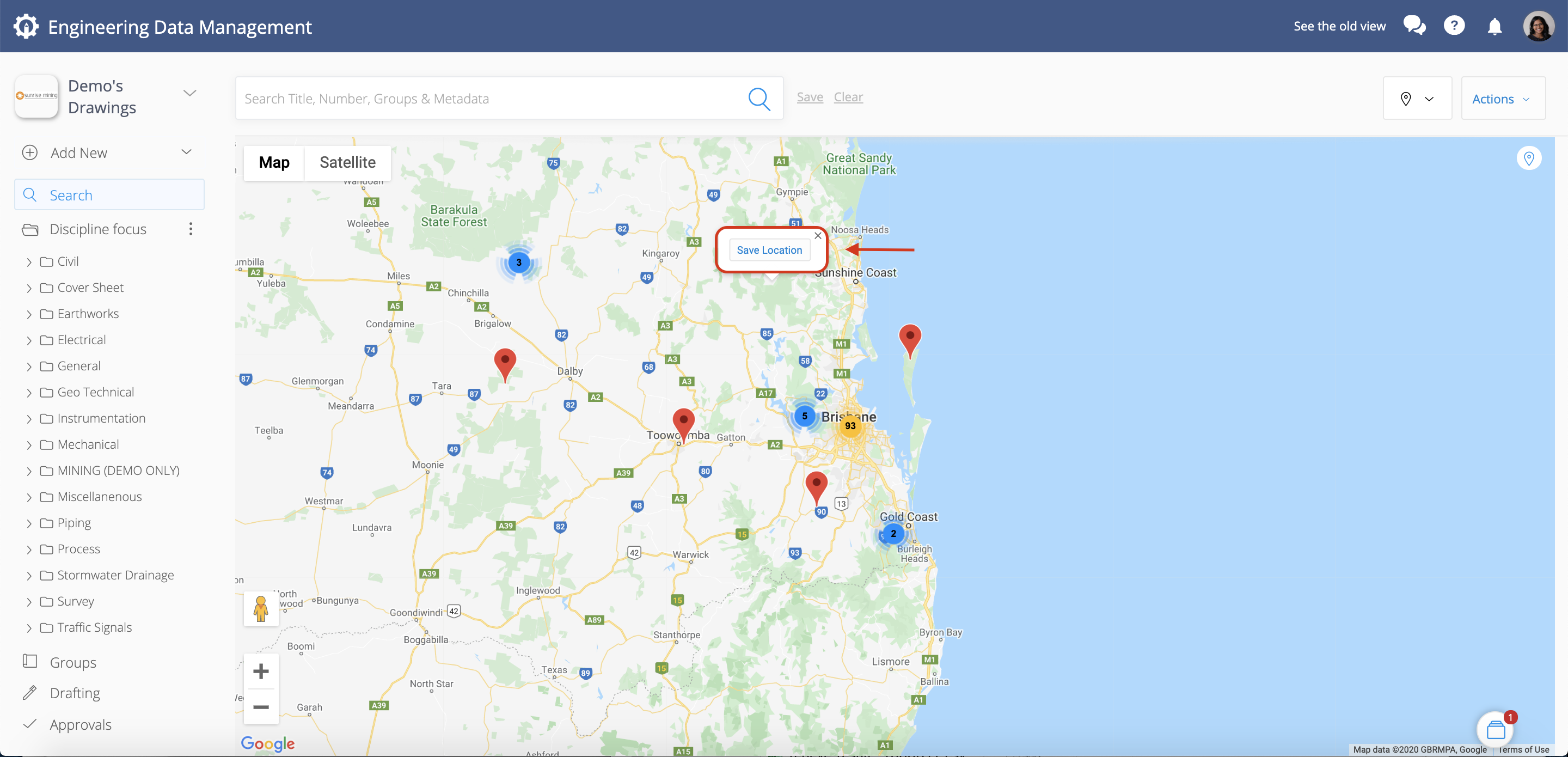
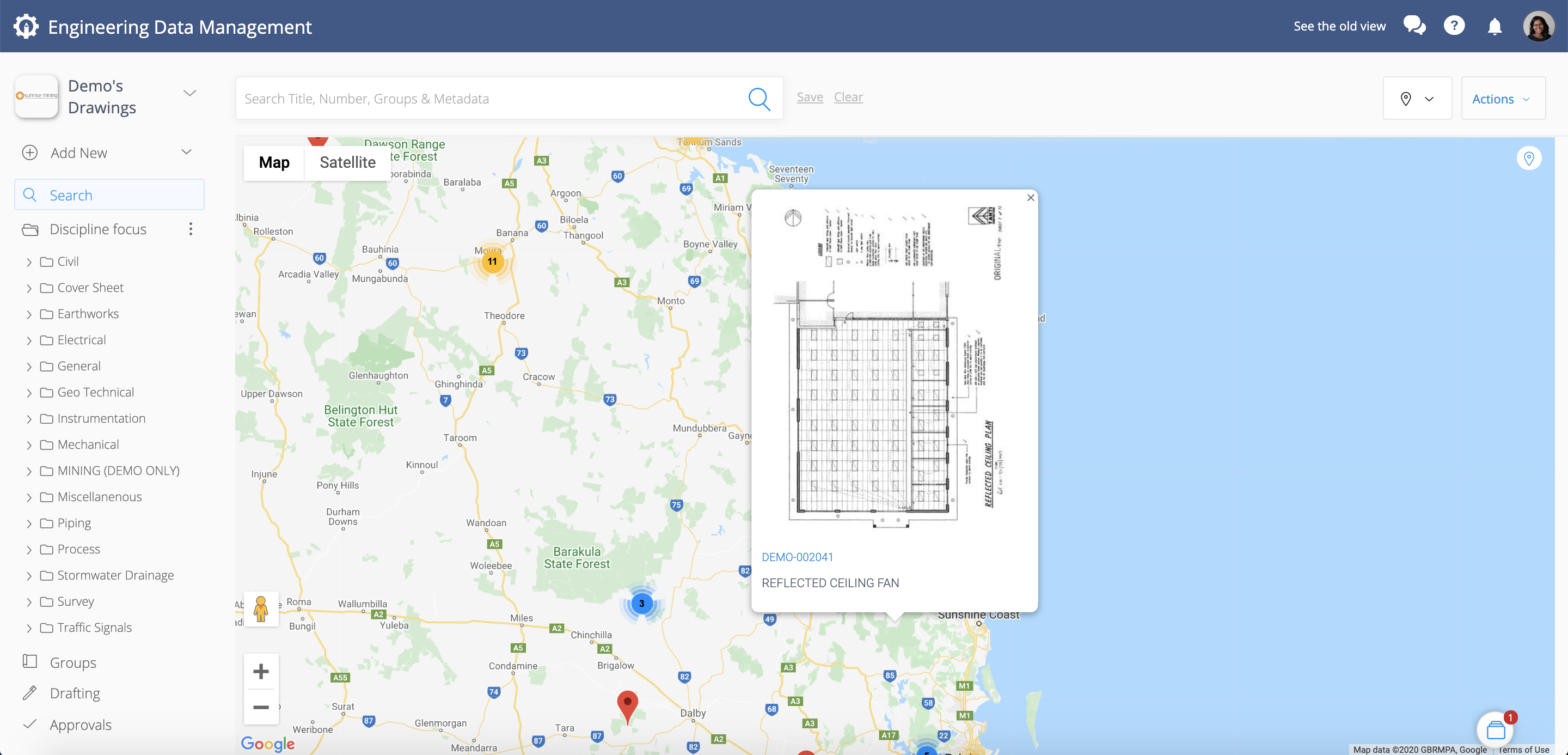
The artefact will be pinned to this location on the map.
Alternatively, you can use the Set Location option (under Action) in the Collection modal to pin an artefact to the map.
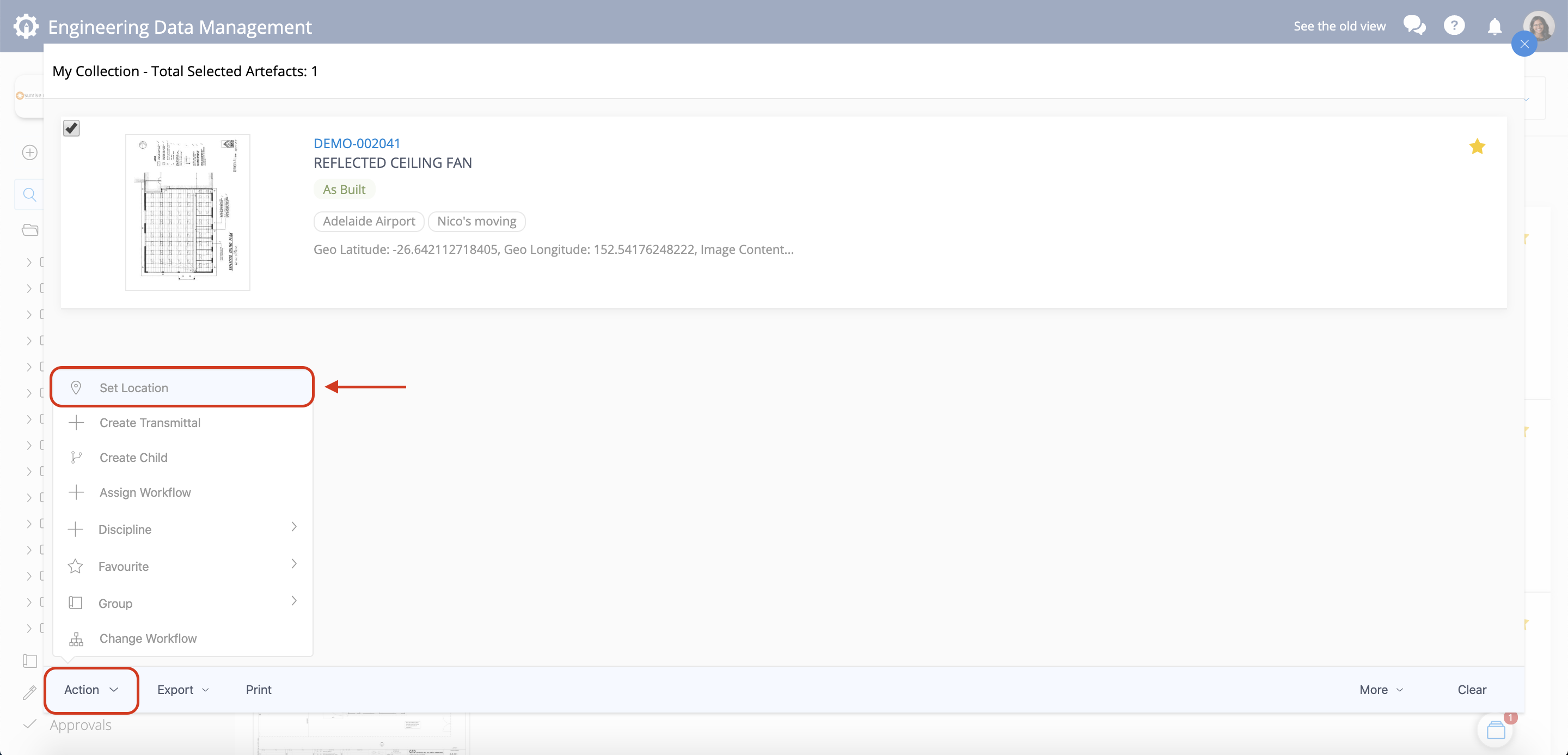
You can also use Set Location to change the location of an existing pinned artefact, just add the artefact to your Collection first.
Viewing Artefacts and Artefact Details:
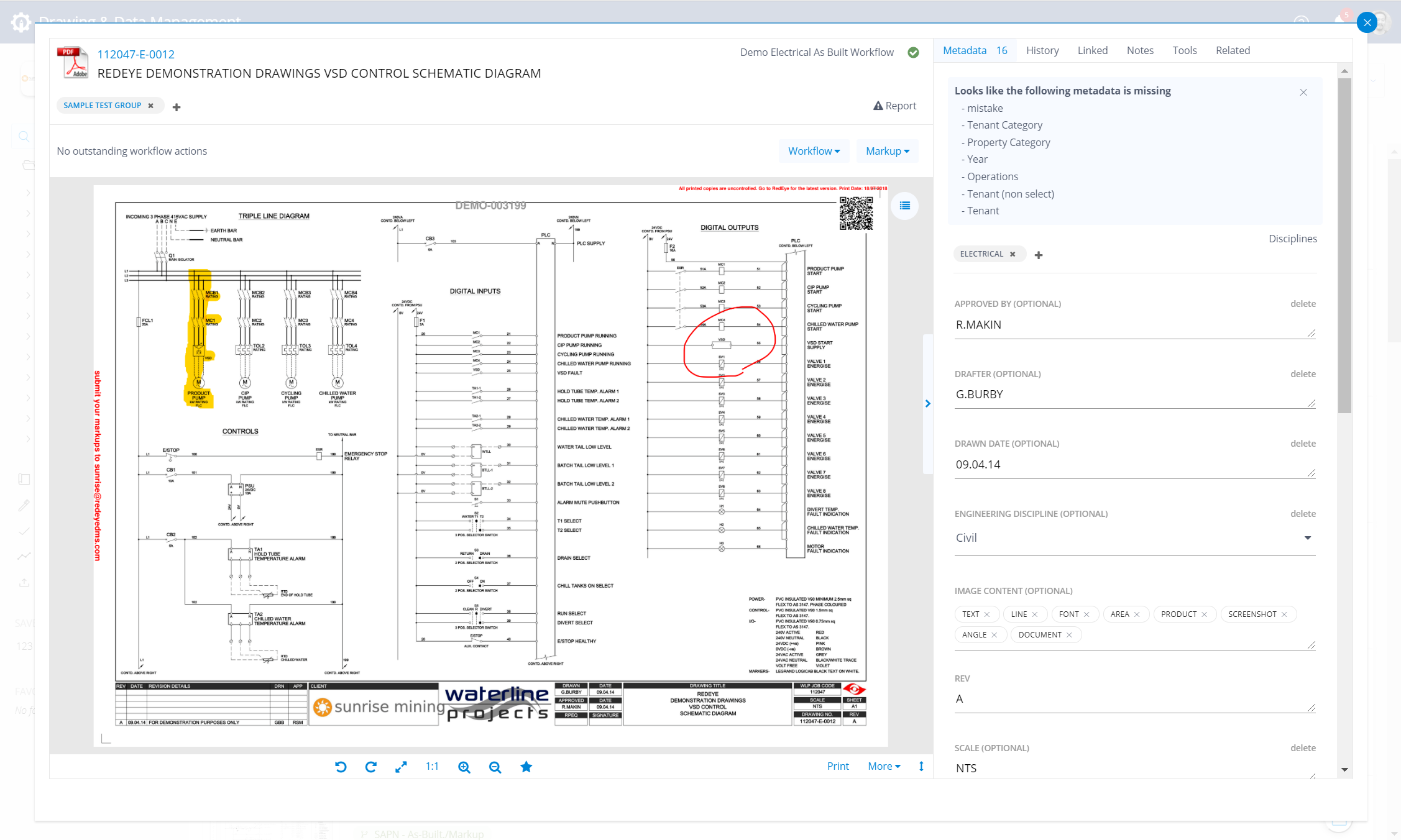
Once you've found the artefact you're looking for, you can click on either the artefact number or preview thumbnail in the search results to open the artefact page, where you can view and manage the artefact.
The artefact page gives you all the information that is known about the artefact, such as metadata, version history, workflow status, and linked artefacts. Tools for administrators to manage artefacts are on this page too.